Unity Integration
Integrate Stash Pay in Unity projects using the Stash Unity package wrapper.
The Unity package is a wrapper around stash-native. We recommend reading the native SDK docs to understand the full capability set and platform-specific behavior.
Requirements
- Unity 2021.3+ (LTS recommended)
- iOS 13.0+
- Android API 21+
Install with UPM
Add from Git URL (recommended)
In Unity:
- Open Window -> Package Manager
- Select + -> Add package from git URL
- Enter:
https://github.com/stashgg/stash-unity.git?path=Packages/gg.stash.unityAdd via manifest.json (alternative)
In Packages/manifest.json, add:
"gg.stash.unity": "https://github.com/stashgg/stash-unity.git?path=Packages/gg.stash.unity"(Optional) Import sample
From Package Manager, open Stash for Unity -> Samples -> Stash Integration Sample -> Import.
Android dependency recommendation
For browser flows and to ensure compatibility since some older Unity versions may bundle outdated Android libraries add these dependencies in your Assets/Plugins/Android/mainTemplate.gradle:
dependencies {
    implementation 'androidx.browser:browser:1.7.0'
    implementation 'androidx.core:core:1.12.0'
    **DEPS**
}
androidx.browser is optional but recommended for Chrome Custom Tabs. androidx.core:1.12.0+ helps avoid compatibility issues when older plugin trees pin outdated AndroidX versions.
Presentation modes
Use StashNative.Instance from Stash.Native to call one of the checkout presentation methods offered by the native package.
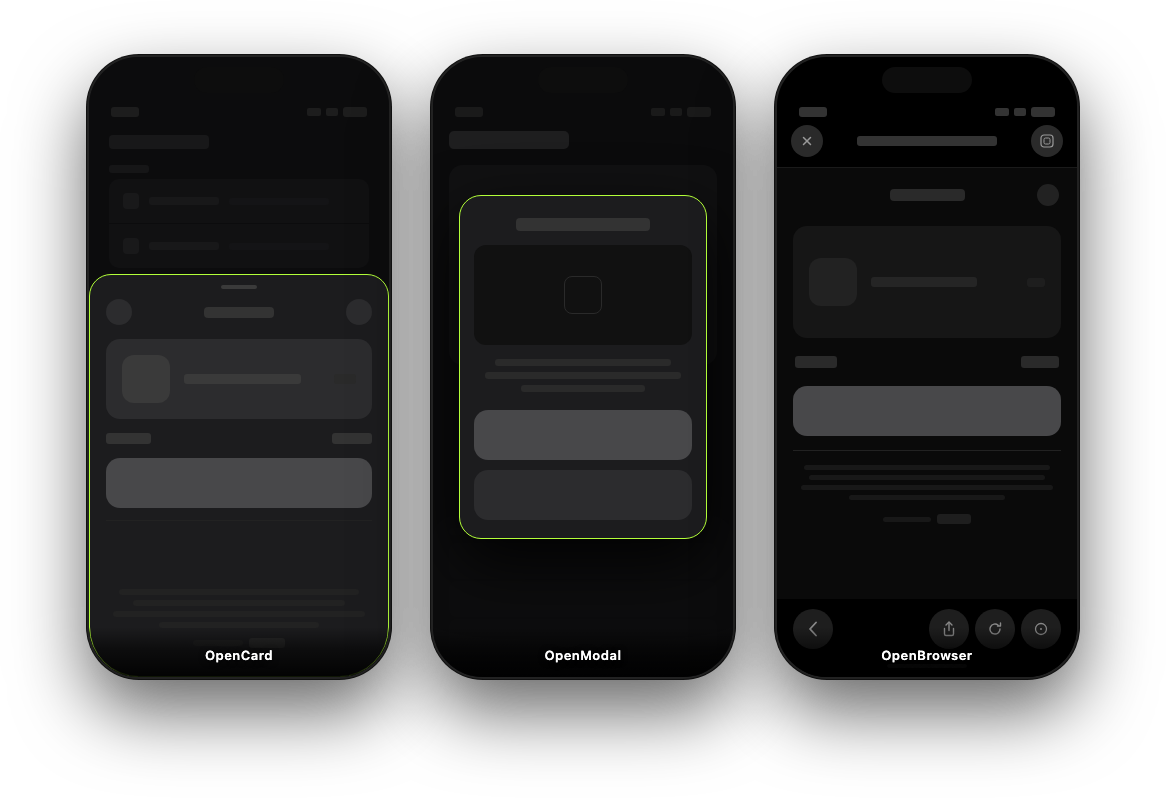
OpenCard
using Stash.Native;

void OpenCardCheckout(string checkoutUrl)
{
    var config = StashNativeCardConfig.Default;
    StashNative.Instance.OpenCard(
        checkoutUrl,
        dismissCallback: OnDismissed,
        successCallback: OnSuccess,
        failureCallback: OnFailure,
        config: config
    );
}
OpenModal
StashNative.Instance.OpenModal(
    checkoutUrl,
    dismissCallback: OnDismissed,
    successCallback: OnSuccess,
    failureCallback: OnFailure
);
OpenBrowser
StashNative.Instance.OpenBrowser(checkoutUrl);
// iOS only when returning to app:
StashNative.Instance.CloseBrowser();
Landscape games and portrait checkout
If your game is landscape-locked but you want checkout in portrait, enable forcePortrait for Stash SDK to swizzle the screen rotation logic at the runtime.
var config = StashNativeCardConfig.Default;
config.forcePortrait = true;
Recommended pattern for stable behavior:
- Save current
Screen.orientationand autorotation settings. - Lock orientation in Unity while card is presented.
- Restore settings in dismiss/success/failure callbacks after the checkout is over.
Android Backdrop
On Android, to avoid visual glitches (black or stretched Unity surface) when rotating from landscape to portrait checkout, you should capture a screenshot of the
game and set it as the checkout backdrop by calling setBackdropBytes(...) before OpenCard(...). Use the simply use the following snippet to do this:
IEnumerator OpenPortraitCheckoutWithBackdrop(string checkoutUrl)
{
    var config = StashNativeCardConfig.Default;
    config.forcePortrait = true;

#if UNITY_ANDROID && !UNITY_EDITOR
    // Capture a frame right before opening checkout.
    yield return new WaitForEndOfFrame();
    var snap = new Texture2D(Screen.width, Screen.height, TextureFormat.RGB24, false);
    snap.ReadPixels(new Rect(0, 0, Screen.width, Screen.height), 0, 0);
    snap.Apply();
    byte[] imageBytes = snap.EncodeToPNG();
    Destroy(snap);

    using (var stashCard = new AndroidJavaClass("com.stash.stashnative.StashNativeCard"))
    {
        stashCard.CallStatic("setBackdropBytes", (object)imageBytes);
    }
#endif

    StashNative.Instance.OpenCard(
        checkoutUrl,
        dismissCallback: () =>
        {
#if UNITY_ANDROID && !UNITY_EDITOR
            using (var stashCard = new AndroidJavaClass("com.stash.stashnative.StashNativeCard"))
            {
                // Clear to avoid reusing a stale image in later checkouts.
                stashCard.CallStatic("setBackdropBytes", (object)null);
            }
#endif
        },
        config: config
    );
}
If you see JNI warnings for byte[] on specific Unity/Android stacks, convert to sbyte[] before calling setBackdropBytes.
Android keep-alive service
Use keep-alive for checkout flows where users temporarily leave the Unity surface (It can be different payment methods, verification or browser absed checkout). On some Android devices, Unity can be suspended or killed while checkout runs in Custom Tabs or the system browser, and keep-alive reduces that risk by running a short foreground service during the payment window.
#if UNITY_ANDROID && !UNITY_EDITOR
StashNative.Instance.SetKeepAliveEnabled(true);
StashNative.Instance.SetKeepAliveConfig(new StashNativeKeepAliveConfig
{
    notificationTitle = "Payment in progress",
    notificationText = "Tap to return to the app",
    notificationIconResId = 0
});
#endif
Unity Editor simulator
The package includes an editor simulator for OpenCard and OpenModal so you can test flow and callbacks without deploying to a device.
- Supported editor platforms: Windows and macOS
OpenBrowseris not simulated (it opens the system browser)
Detailed references
- Unity package docs and API: stash-unity README
- Native SDK behavior underneath Unity: stash-native
- Stash Pay server integration flow: /guides/stash-pay/integration
How is this guide?